
Business Central 2026 Release Wave 2: Small Changes That Make Finding Your Data Much Easier
Some of the most useful enhancements in Business Central 2026 release wave 2 (version 29) are not necessarily the biggest features.
These two improvements released in Version 29 in particular caught our attention:
- System audit fields are becoming much more accessible for analysis.
- Filtered list views and Analysis Mode views can be bookmarked for quick access.
Together, these enhancements make it easier to answer questions such as Who created this record?, When was it changed?, and How do I get back to the exact view I use every day?
System audit fields are now available in Analysis Mode
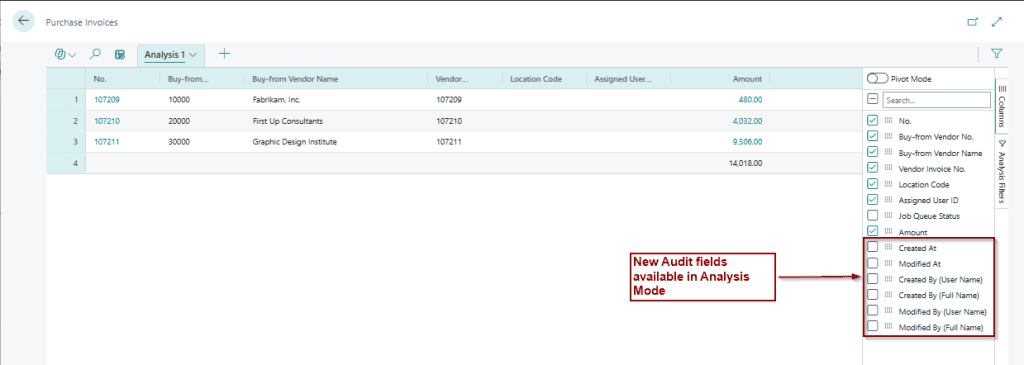
With Business Central 2026 release wave 2, Microsoft has introduced Use system audit fields in analysis mode and in profiles.
Why is this useful?
Consider reviewing ledger entries or another List Page to investigate when records were created or modified.
Having the who created it and when information available alongside the business data can make investigation and analysis much more convenient.
It also means you can incorporate this information into your own analysis rather than requiring a customised report whenever you need this additional visibility.
A practical example
Imagine you’re reviewing a list of transactions and notice several entries you weren’t expecting.
Rather than simply looking at the financial or operational information, audit information can provide additional context around the records you’re investigating.
This can be particularly useful when:
- investigating unexpected transactions
- reviewing recently created or changed records
- reconciling data
- troubleshooting processing issues
- performing internal reviews
Bookmark your filtered Business Central lists
Here’s another enhancement that I think many Business Central users will appreciate.
Microsoft has introduced the ability to bookmark list views and analysis tabs.
Think about the lists you use every day.
You might regularly open a list and then apply filters to show:
- your customers
- outstanding transactions
- transactions for a particular period
- entries relating to a specific department, dimension or business area
Previously, getting back to that working view could involve navigating to the page and recreating or selecting the view you needed.
With the new functionality, a useful filtered view can become a much more direct entry point from your Business Central home page.
Set it up once, bookmark it, and return to the information you actually need.
And it gets even better with Analysis Mode
The same principle now extends to Analysis Mode.
Analysis Mode already provides an interactive way to calculate, summarise and examine data directly from lists without having to run a separate report or move the data into Excel.
With Business Central 29, Microsoft has added the ability to bookmark analysis tabs as well.
This creates some really interesting opportunities.
For example, you could create an analysis of ledger entries containing the columns, filters and perspective you regularly use, and then make that analysis easier to access again from your Role Center.
Instead of:
Navigate, find the page, enter Analysis Mode, locate the analysis your frequently used analysis becomes much easier to return to.
Why these changes matter
Neither of these features radically changes Business Central, sometimes the best new features aren’t about adding another process but simplifying what you currently do.
And that’s exactly why I like them.
They focus on something just as important: reducing the additional steps in everyday tasks.
Business Central already contains an enormous amount of information.
The challenge for users is often getting from the Role Center to the specific information they need as efficiently as possible.
Want to see how these features could improve the way your team works in Business Central? Talk to the Acumen Consulting (WGTN) Team about getting more from Business Central 2026 release wave 2.
